Why Wont Screen Mirroring Work? [Read To Know Why]
If you are asking why wont screen mirroring work, the culprit is almost always a simple network mismatch or an outdated software driver. By checking your Wi-Fi frequency, updating your operating system, and resetting your connection handshake, you can usually resolve the issue without needing expensive technical support.
We have all been there. You are ready to show your friends a vacation video or present a crucial slide deck, but the connection just refuses to hold. You tap the button, the loading icon spins endlessly, and you are left wondering, why wont screen mirroring work? It is one of the most frustrating tech glitches of 2026, yet it is rarely a sign that your hardware is actually broken.
Screen mirroring, at its core, is a delicate dance of wireless signals and software protocols. Even with the advanced AI-driven home networks we enjoy today, the process requires perfect synchronization between two different devices. Whether you are using an iPhone, an Android, or a laptop, the technology relies on a stable “handshake” that can be interrupted by a dozen minor factors. Let’s dive into how to fix these common headaches.
Key Takeaways
- Network Alignment: Both devices must be on the exact same Wi-Fi network and frequency band (2.4GHz vs 5GHz) to communicate effectively.
- Software Updates: Outdated firmware on either your phone or your television is the most common reason screen mirroring fails in 2026.
- Security Interference: Firewalls or VPNs often block the discovery protocols required for wireless display transmission.
- Bluetooth Conflict: Sometimes Bluetooth interferes with the initial “handshake” between devices, so toggling it off and on can help.
- Hardware Limitations: Not every device supports the same protocols (like Miracast, AirPlay, or Chromecast), leading to compatibility gaps.
Checking Your Network Connection
The number one reason for connectivity failures is the network environment. In 2026, most households use mesh routers that intelligently switch devices between 2.4GHz and 5GHz bands. While this is great for internet speed, it is often why wont screen mirroring work for many users. The sender and the receiver often need to be on the identical band to “see” each other.
The Same Network Rule
If your phone is on the “Guest” network or a secondary router access point, it will effectively be invisible to your television. Always check your settings to ensure both devices share the exact same SSID (network name). If you have a dual-band router, try forcing both devices onto the 5GHz band to reduce interference from other household appliances like microwaves or baby monitors.
Rebooting Your Router
Sometimes, the “discovery” protocol inside your router gets clogged. A simple power cycle—unplugging your router for thirty seconds—clears the cache. This often resets the UPnP (Universal Plug and Play) settings, which are essential for allowing devices to identify each other on a local network.
Software and Firmware Compatibility
Technology moves fast. In 2026, operating systems update weekly to fix security bugs. If your smart TV is running software from two years ago, it might not support the latest version of the mirroring protocol on your smartphone. When people ask why wont screen mirroring work, they often forget that both endpoints need to be on speaking terms.
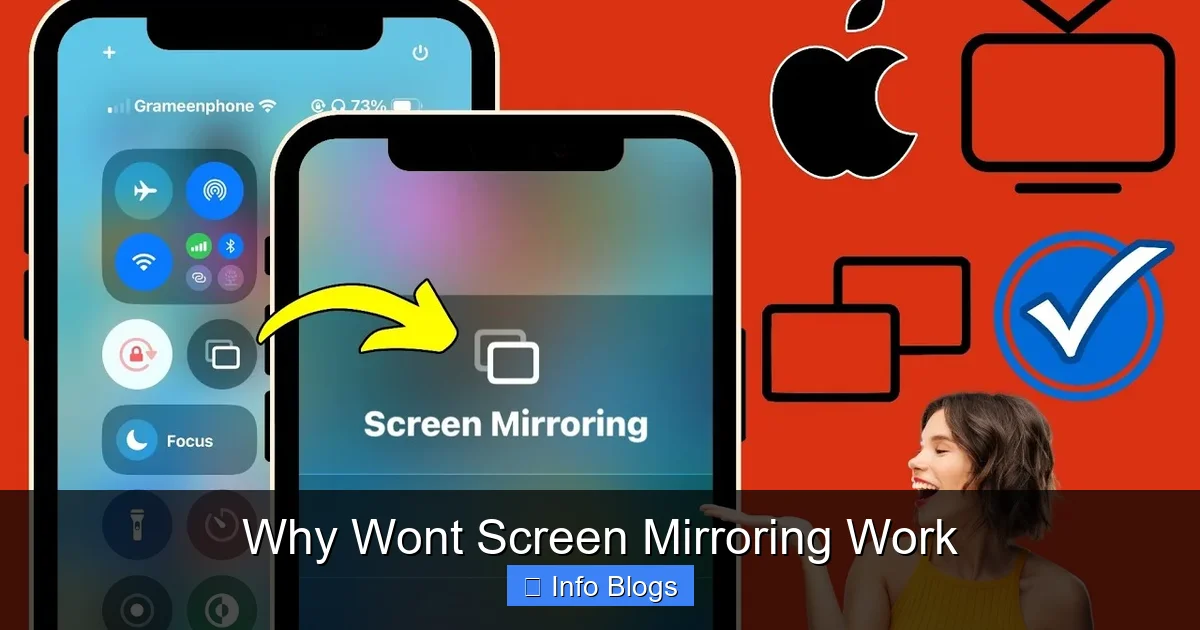
Visual guide about Why Wont Screen Mirroring Work
Image source: i.ytimg.com
Updating Your Devices
Head into the settings menu of your television. Look for “System Update” or “Software Update.” Even if the TV seems to be working fine for Netflix or YouTube, it might lack the specific driver required for screen casting. Simultaneously, check your smartphone or laptop for pending OS updates. If one side is on a brand-new OS version and the other is lagging, the connection will likely time out.
The Protocol Gap
Remember that different brands use different languages. An iPhone primarily uses AirPlay, while many Windows PCs rely on Miracast, and Android devices often favor Google Cast. If your TV only supports one, and you are trying to use another, no amount of troubleshooting will make it work. Always check your TV’s manual or online support page to see which specific casting protocols it supports.
Addressing Security and VPN Interference
Modern cybersecurity is vital, but it is also the sworn enemy of local screen mirroring. VPNs (Virtual Private Networks) are designed to hide your device’s location and isolate your traffic. By definition, a VPN prevents your device from “broadcasting” its presence to other local devices like your TV.
Disabling VPNs and Firewalls
If you are wondering why wont screen mirroring work while you are working from home, look at your taskbar. If a VPN is active, turn it off completely. Most VPN apps have a “Kill Switch” that prevents any local device communication when the VPN is on. Once you disconnect, the mirroring feature should instantly discover your display receiver.
Firewall Restrictions
On laptops, the built-in firewall might view the incoming screen mirroring request as a security threat. Try temporarily disabling your firewall settings to see if the connection goes through. If it does, you simply need to add an “exception” or “allow” rule for your screen-sharing application within your security settings.
Bluetooth and Physical Interference
People often ignore physical proximity, thinking Wi-Fi signals go through everything. While Wi-Fi is strong, the initial handshake for screen mirroring often uses Bluetooth Low Energy (BLE) to establish a connection before switching to the high-speed Wi-Fi stream. If your Bluetooth is turned off, the devices may never initiate the handshake.
The Bluetooth Fix
Try toggling your Bluetooth off and back on again on your sending device. If you are using a wireless speaker system nearby, try turning that off temporarily. Sometimes, multiple Bluetooth connections can cause signal congestion, leading to a failed handshake.
Distance Matters
While the actual streaming happens over Wi-Fi, the initial discovery is sensitive to distance. Bring your smartphone or laptop within ten feet of the TV or receiver during the initial connection. Once the stream is active, you can move back to your couch, but keeping them close during the handshake prevents signal loss.
Managing Resource Overload
Sometimes, the problem isn’t the network—it’s the device itself. If you have thirty apps open, your CPU might be too busy to handle the encoding process required for real-time screen mirroring. Real-time video compression is a heavy task that consumes significant RAM and processor cycles.
Closing Background Apps
Close down heavy applications, especially gaming apps or video editors, before attempting to mirror. Freeing up system resources gives the mirroring process the bandwidth it needs to maintain a smooth frame rate. If your phone is running hot, the processor will intentionally throttle its performance, which can cause the mirroring connection to drop suddenly.
Hardware Reset
If you have tried everything else, a factory reset of the TV or a hard reboot of the phone is the final option. A hard reboot (not just putting it in sleep mode) forces the device to reload all drivers from scratch. Often, this clears out a stuck process that was blocking the mirroring interface.
Conclusion
So, why wont screen mirroring work? As we have explored, the answer is rarely a catastrophic failure. It is usually a matter of mismatched network bands, an outdated update, or a rogue VPN connection. By methodically working through these steps—restarting your devices, checking your Wi-Fi, and disabling security software—you can solve the vast majority of connectivity issues in just a few minutes.
In 2026, our devices are more capable than ever, but they still require a clear path to communicate. Don’t let a temporary glitch ruin your presentation or your movie night. Take a breath, follow these troubleshooting steps, and you will be back to wireless bliss in no time at all. Remember, technology is a tool meant to serve you; with just a little patience, you remain the master of your digital domain.
Frequently Asked Questions
Why wont screen mirroring work even though my devices are on the same Wi-Fi?
This is often caused by your router’s “AP Isolation” setting, which prevents devices on the same network from talking to each other. Check your router’s security settings to ensure this feature is disabled.
Does a VPN prevent my phone from connecting to my TV?
Yes, most VPNs block local network traffic to protect your data. You must disconnect your VPN for the duration of your screen mirroring session.
Why does my screen mirroring lag or freeze?
Lag is usually caused by network congestion or a weak Wi-Fi signal. Try moving your devices closer to the router and closing any background apps that are using the internet.
Can I screen mirror if my TV doesn’t have Wi-Fi?
If your TV lacks Wi-Fi, you will need a third-party dongle like a Chromecast, Roku, or Fire Stick. These devices plug into the HDMI port and provide the necessary wireless receiver technology.
Do I need to update my TV even if it works for apps?
Yes, because the “casting” protocol is a separate piece of software from your streaming apps like Netflix. You must keep the system firmware updated to ensure the casting driver remains compatible with your phone.
Is there a difference between AirPlay and Screen Mirroring?
AirPlay is a proprietary protocol developed by Apple, whereas screen mirroring is a general term for various technologies like Miracast. Always ensure your receiving device supports the specific protocol your phone uses.