Why Isnt Screen Mirroring Working? [Read To Learn More]
Wondering why isnt screen mirroring working on your devices? Most of the time, the fix is as simple as reconnecting your Wi-Fi network or restarting your gadgets. This comprehensive guide will walk you through the most common connection roadblocks and show you exactly how to bypass them for smooth, lag-free sharing.
Picture this: you have a hilarious viral video on your phone, or a fantastic vacation slideshow, and you want to share it with the whole room on the big screen. You tap the cast icon, lean back, and wait. But nothing happens. Or worse, you get a frustrating connection error message. If you are sitting there asking yourself, why isnt screen mirroring working, you are definitely not alone. It is one of the most common modern tech headaches.
Screen mirroring and wireless casting are amazing when they cooperate. They let us cut the cords, ditch the HDMI cables, and fling our favorite media across the room with a single tap. But because wireless casting relies on a complex chain of Wi-Fi signals, device software, and security protocols, a lot can go wrong. The good news is that most mirroring issues are remarkably easy to troubleshoot once you know where to look. Let us dive into the top reasons why isnt screen mirroring working and how you can fix them right now.
Key Takeaways
- Wi-Fi Connection: Both devices must be on the exact same wireless network band for seamless communication.
- Bluetooth Interference: Turning Bluetooth on and off can resolve handshake failures during initial device pairing.
- Software Updates: Outdated firmware on your TV, phone, or streaming stick is a major cause of casting failure.
- Device Compatibility: Ensure your hardware supports matching protocols like AirPlay, Chromecast, or Miracast.
- Network Isolation: Router security settings like AP isolation can block devices from seeing each other.
- Simple Reboots: Power cycling your phone, TV, and router fixes temporary glitch loops instantly.
1. The Golden Rule: Same Wi-Fi Network
When wondering why isnt screen mirroring working, your very first suspect should always be your Wi-Fi network. Wireless casting protocols like Apple AirPlay, Google Cast, and Miracast generally require both the sending device (like your phone or laptop) and the receiving device (like your smart TV or streaming box) to talk to each other over the exact same local network.
Checking Your Network Bands
Modern routers often broadcast multiple networks, typically split into 2.4 GHz and 5 GHz bands. If your smartphone is connected to the 5 GHz band while your smart TV is accidentally hitched to the 2.4 GHz band, they might as well be on different planets. They cannot see each other. Open your network settings on both devices and verify they share the exact same Wi-Fi name.
Guest Networks and Isolation
Another sneaky network culprit is client isolation or a guest network setting on your router. Guest networks are designed to keep devices separated for security reasons. If your phone is on a guest network, it is legally blind to other gadgets on your main home network. Switch both devices to your primary home Wi-Fi and try casting again.
2. Bluetooth and Interference Glitches
We often forget that Bluetooth plays a supporting role in wireless casting. Many modern devices use Bluetooth to perform an initial handshake before handing the heavy video stream over to your Wi-Fi network. If that handshake fails, screen mirroring falls apart before it even begins.
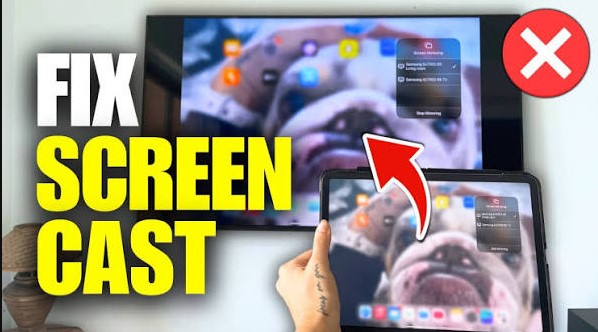
Visual guide about Why Isnt Screen Mirroring Working
Image source: i.ytimg.com
Toggling Bluetooth
A quick trick when exploring why isnt screen mirroring working is to toggle Bluetooth off and back on again on your smartphone or tablet. This clears out any hung connection cache. If you are using Apple devices, make sure both Wi-Fi and Bluetooth are enabled on your iPhone or iPad, even if your Apple TV is hardwired via an ethernet cable.
Physical Interference
Wireless signals hate physical obstacles. If your Wi-Fi router is locked inside a metal media cabinet, or if your phone is sitting right next to a churning microwave or a thick brick wall, your casting performance will tank. Try moving your sending device closer to the TV to see if the connection stabilizes.
3. Software and Firmware Updates
Tech companies push out software updates constantly. If your phone is running the latest operating system, but your smart TV hasn’t seen an update in two years, the communication protocols might no longer match. This version mismatch is a silent killer for wireless displays.
Updating Your Television
Head into the settings menu of your smart TV or streaming stick (whether it is Roku, Amazon Fire TV, Apple TV, or Google TV). Look for a section called System, About, or Software Update. Check for any pending downloads and install them. A fresh operating system often patches known bugs that cause screen sharing failures.
Updating Your Phone or Laptop
Similarly, check your phone settings. An unfinished operating system update can break casting features without warning. Once everything is running the latest software version, restart both devices to give them a clean slate.
4. Device Compatibility and Protocol Clashes
Not all wireless casting technologies speak the same language. This is one of the most confusing parts of home entertainment tech. If you have ever asked why isnt screen mirroring working across different brands, compatibility is usually the roadblock.
Apple versus Android
Apple devices use a proprietary protocol called AirPlay. Android devices generally use Google Cast or Miracast. If you try to cast an iPhone directly to a standard Windows PC or an older TV that only supports Miracast, it simply will not work without third-party receiving software installed on the display.
Checking Hardware Support
Always verify what your TV supports. If your television lacks built-in AirPlay or Chromecast capabilities, you will need an external streaming stick plugged into an HDMI port to bridge the gap. Once you have the right hardware receiver, casting becomes a breeze.
5. The Power Cycle Magic
When all else fails, turn it off and on again. It sounds like a cliché tech support line, but power cycling is genuinely powerful. Routers, smart TVs, and smartphones run complex background software that can experience temporary memory leaks or frozen background processes.
Restarting Your Router
Unplug your Wi-Fi router, wait about thirty seconds, and plug it back in. This clears the local DNS cache and refreshes all internal IP addresses assigned to your home gadgets.
Restarting Your TV and Phone
Unplug your television from the wall outlet as well, or hold down the power button on your remote until it performs a hard reboot. Do the same for your phone. Once everything boots back up, your devices will have fresh network handshakes, which solves a staggering number of mystery casting issues.
Summary of Quick Fixes
When you find yourself staring at a blank screen and wondering why isnt screen mirroring working, run through this mental checklist: Are they on the same Wi-Fi? Are both devices updated? Have you toggled Bluetooth? And finally, did you restart everything? Taking sixty seconds to run through these steps will save you hours of frustration and get your media up on the big screen in no time.
Frequently Asked Questions
Why does my screen mirroring lag or freeze?
Lag is usually caused by a weak Wi-Fi signal or network congestion. Moving closer to your router, switching to the less crowded 5 GHz band, or closing bandwidth-heavy background downloads will instantly smooth out your mirrored video feed.
Can I screen mirror without an internet connection?
Yes, many modern devices support peer-to-peer Wi-Fi Direct or Apple’s peer-to-peer AirPlay. This means your devices can talk to each other directly without needing an active internet connection, though local router communication is still standard.
Why does my screen mirroring disconnect after a few minutes?
Random disconnects often happen due to power-saving settings on your phone or router security features. Disabling battery saver modes on your mobile device and ensuring your router isn’t dropping inactive local connections will keep your stream steady.
Do I need Wi-Fi for Chromecast to work?
Traditional Chromecast devices require a local Wi-Fi network to set up and stream content from other devices. However, some newer streaming dongles offer guest modes or direct connections for basic casting without full network access.
Why is there audio but no video when mirroring?
Audio without video is typically a copyright protection (HDCP) issue or a codec mismatch. Protected content from apps like Netflix or streaming video services often blocks raw screen mirroring, requiring you to use the built-in app on the TV instead.
How do I know if my TV supports screen mirroring?
You can check your TV model’s manual online, or look in your TV’s settings menu under Network, System, or External Device connections. Look for labels like AirPlay, Chromecast built-in, Miracast, or Screen Share.